
Guides
How to Export Your BankFlow Transactions to CSV, Excel, or QuickBooks
Step-by-step: export filtered or selected transactions from BankFlow as CSV, Excel, JSON, or a QuickBooks/OFX file, with the exact columns your workflow needs.
Last verified in BankFlow on August 20, 2026.
Last verified in BankFlow on August 20, 2026.
What You'll Export
By the end of this guide you'll have a transactions file, CSV, Excel, JSON, or a QuickBooks/OFX file, built from exactly the rows you're looking at in BankFlow: filtered, sorted, and in the columns your workflow actually needs.
Before You Start
- You need at least one imported statement. Export works on whatever transactions are already in your ledger.
- Five formats are available: CSV, Excel (.xlsx), JSON, and, as of this month, OFX and QuickBooks (QBO) for direct import into desktop accounting and finance software.
- Exporting doesn't use credits. Credits are spent parsing statements on import; generating an export from data already in your ledger is free, however many rows it contains.
- It takes seconds. There's no processing queue, the file is built and downloaded immediately.
Step 1: Open Transactions and set your filters
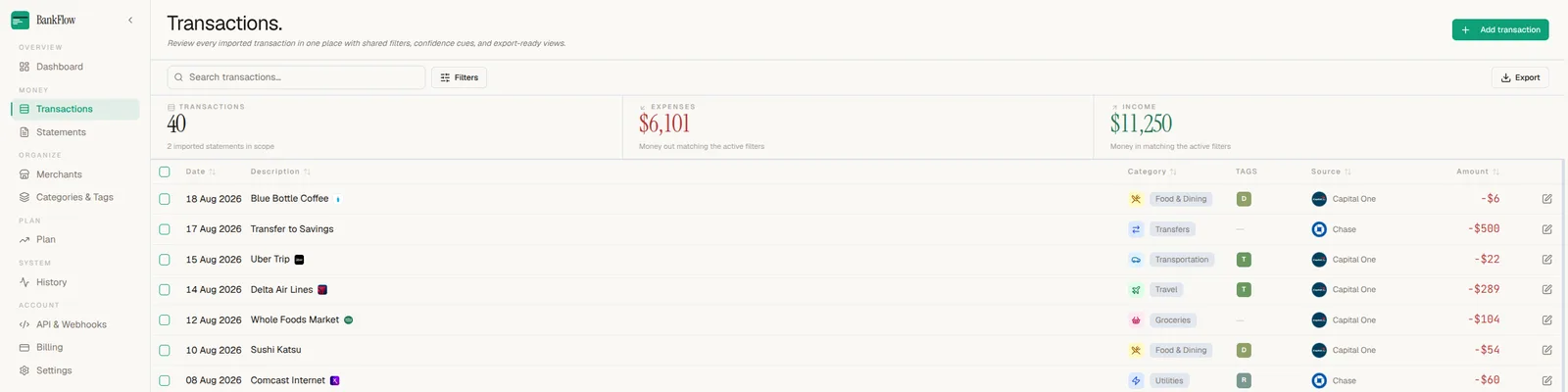
Go to Transactions in the sidebar. Search, category, date range, and any other filter you apply here isn't just for browsing, it defines what gets exported. The default export scope is "Current page filters," so the rows on screen are the rows in the file.
Step 2: Click Export
The Export button sits in the top-right corner of the Transactions page, next to Add transaction.
Step 3: Configure the export
Everything else happens in one dialog, not a multi-screen wizard: scope, format, fields, and row order are all set here before you confirm.
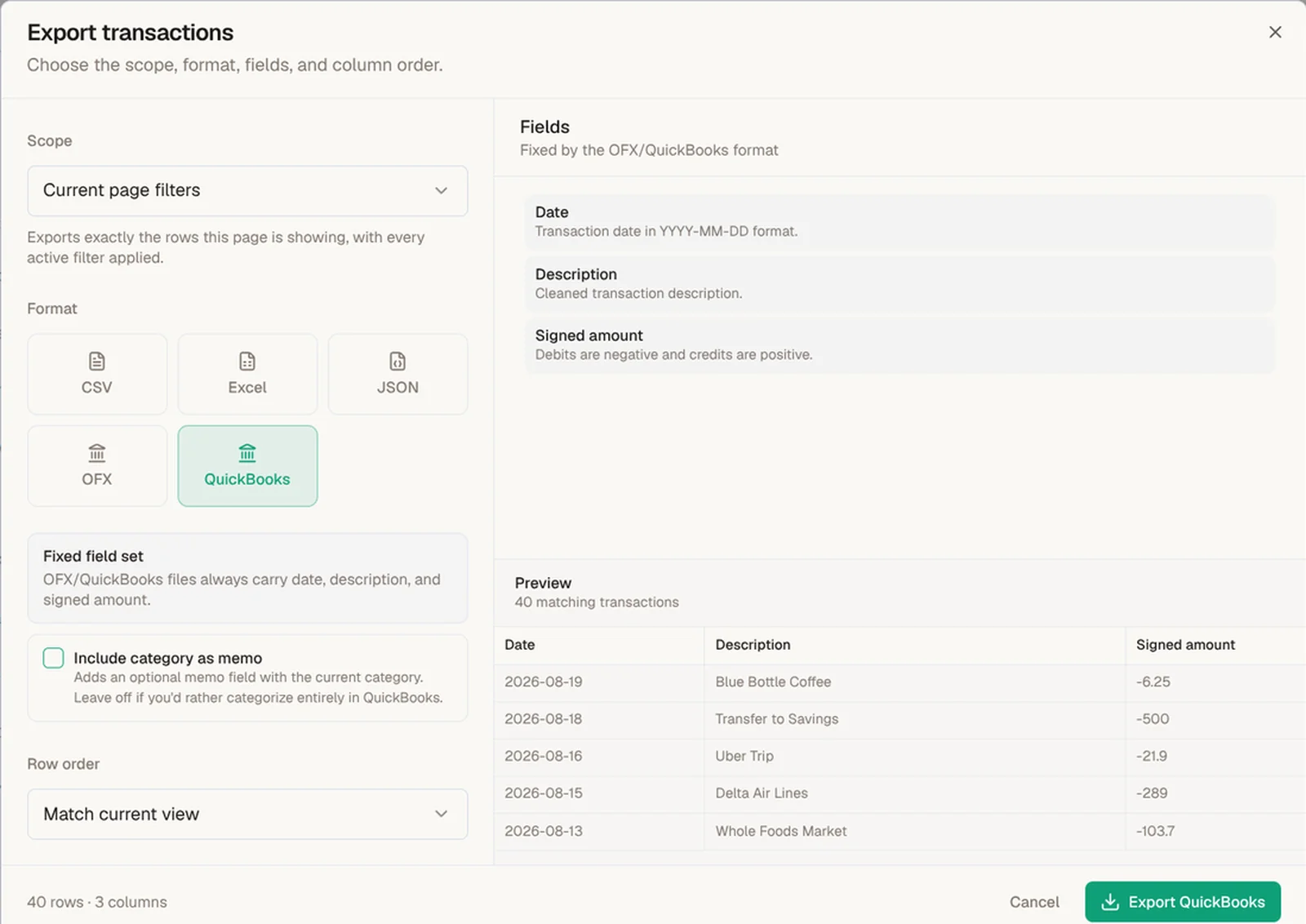
Scope defaults to "Current page filters," shown selected above, which exports exactly the rows the page is showing with every active filter applied. If you had rows checked before opening Export, a "Selected transactions" option appears too, exporting exactly what you checked, minus anything you unticked, regardless of what the filters would otherwise match.
Format: CSV, Excel, and JSON are fully configurable, you pick which columns come along. OFX and QuickBooks are fixed-schema, by design: both only carry date, description, and a signed amount, which is what QuickBooks and Quicken expect on import. Pick either one and the fields panel on the right locks to those three, with a live preview of the rows that will export. There's also an "Include category as memo" toggle that folds the category into the memo field instead of leaving categorization entirely to QuickBooks.
Fields (CSV, Excel, JSON only) offer four presets, and you can still hand-pick individual fields after choosing one:
- Standard: a clear bank-statement layout with categorization and source context.
- Accounting: separate debit and credit columns for reconciliation.
- Compact: a signed amount plus the essential categorization fields, good for quick spreadsheet work.
- Detailed: business context, source details, tags, notes, and review state, everything BankFlow tracks on a transaction.
Row order defaults to "Match current view," so the export lines up with however you last sorted the table.
Check Your Result
The file downloads immediately, and a confirmation shows the row count and format, for example, "40 transactions exported as Excel." Open it to confirm the columns match what you picked and the row count matches what you expected.
Common Problems
The export has more or fewer rows than I expected. Check your active filters first, export mirrors the filtered view exactly. If you had rows selected, confirm you meant to export the selection rather than the full filtered set.
QuickBooks won't accept my file, or it's missing columns. Use the OFX or QuickBooks format, not CSV. Both are intentionally limited to date, description, and amount because that's the schema QuickBooks and Quicken import readers expect; anything else needs the memo toggle or a manual column mapping on the QuickBooks side.
I need more columns than OFX/QuickBooks allow. Export as CSV or Excel with the Detailed preset instead, then import that into your accounting software's generic CSV importer if it has one.
Next Step
Once your data is exported the way you want it, see what else BankFlow tracks automatically, categorization, merchant recognition, and cashflow forecasting all run on the same ledger you just exported from.